Sante Worklist Server
Quick start guide
Copyright © 2026 Santesoft LTD , all rights reserved
Table of Contents
Overview
Sante Worklist Server (MWL Server) is a standalone application that receives patient demographic and exam scheduling information from a HIS/RIS system (Hospital Information System / Radiology Information System) via HL7 communication messages. It then transfers this information to any modality or medical scanner using DICOM communication protocols (C-FIND).
The program provides automated, reliable, and error-free data transfer from HL7 nodes (HIS/RIS) to DICOM nodes (medical scanners), without the need for human intervention.
Features and benefits
- The server can run as a Windows service.
- Supports an unlimited number of patients/exams (limited only by available disk space).
- Supports an unlimited number of connections to HL7 nodes.
- Supports an unlimited number of connections to DICOM nodes.
- Can query other DICOM Worklist nodes.
- Maps HL7 message fields to the program's database fields.
- Supports all character sets (Latin, Chinese, Japanese, Korean, Cyrillic, Arabic, Greek, Turkish, etc.).
- Supports DICOM network services (C-FIND SCU/SCP, C-ECHO SCU/SCP).
- Compatible with all modalities (CT, MR, NM, US, XA, MG, CR, etc.).
- Perpetual license that never expires.
- Free updates and technical support for the lifetime of the product.
- Compatible with Windows Server 2025/2022/2019/2016 and Windows 11/10 (64-bit).
- Easy to use, with a native Windows look and feel.
Minimum System Requirements
- Windows Server 2025/2022/2019/2016 or Windows 11/10 64-bit
- Intel Core i3 1.3 GHz or greater
- 4 GB memory or more
- Monitor that supports a resolution of 1366x768 or higher
- 100 MB of free hard disk space
Program Configuration
Before using the software for the first time, it must be properly configured by the user.
The program functions as a DICOM Worklist Server and can be queried by medical scanners for scheduled procedures. Therefore, it must be configured as a DICOM node — meaning it needs an AE Title and an IP port for DICOM communications, just like any other DICOM node.
Additionally, the program acts as an HL7 client. It can receive HL7 messages containing scheduled procedure information from HIS/RIS systems. For this purpose, it must also be assigned an IP port for communication with other HL7 nodes.
To perform the configuration, the user should select the Program Setup command from the toolbar. This will open the following dialog box:
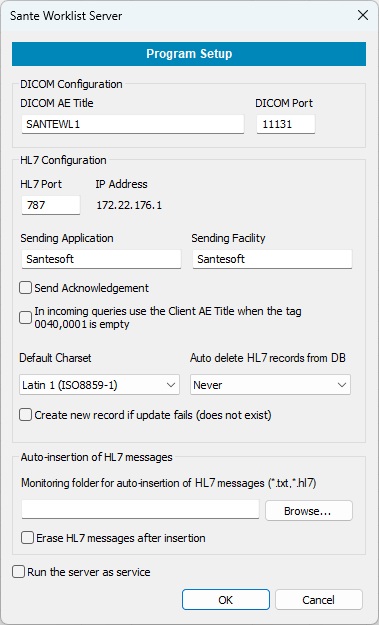
DICOM AE Title, DICOM port
Specifies the AE Title and IP port used for DICOM communication with other DICOM nodes.
HL7 Port
The IP port used for communication with other HL7 nodes such as HIS/RIS systems.
IP address
This address is automatically assigned by the Windows operating system. To change it, the user must modify the TCP/IP settings in Windows.
Sending Application / Sending Facility
If the program sends HL7 messages to other HL7 clients, it uses these values in the MSH.3 and MSH.4 fields of the HL7 message header.
Send Acknowledgement
Some HL7 servers require an acknowledgment message as confirmation that a message was received. When this option is enabled, the program sends an HL7 ACK message back to the server.
In incoming queries use the Client AE Title when the tag 0040,0001 is empty
Some DICOM nodes request the station name. If tag (0040,0001) is empty, the program will use the AE Title of the querying DICOM node as the station name.
Default Charset
If an HL7 message does not specify a character set, the program uses the character set defined in this field.
Auto delete HL7 records
The program can automatically delete from the database old messages that are no longer needed. Messages can be deleted if they are older than 7 days, 14 days, 1 month, or 3 months.
Create new record if update fails (does not exist)
If this option is enabled, the program will create a new record in the database if an update operation fails because the record does not exist.
Monitoring folder for auto-insertion of HL7 messages
The program monitors a specified folder for HL7 message files with the extensions .txt or .hl7. When a message is successfully inserted into the database, the file is renamed with the extension .DON. If insertion fails, it is renamed with .ERR.
Erase HL7 messages after insertion
If this option is enabled, successfully inserted HL7 message files are deleted instead of being renamed with .DON. Messages that fail to insert are not deleted.
Run the server as service
This option enables the software to run as a Windows service.
How it works
Connection with HIS/RIS servers.
The Sante Worklist Server receives messages in HL7 format from one or more HIS/RIS servers and stores them in the database.
IMPORTANT:The Sante Worklist Server cannot request these messages from the HIS/RIS servers; the HIS/RIS servers must send the messages to the HL7 port of the Sante Worklist Server.
Connection with DICOM modalities.
Each DICOM modality sends a C-FIND request to the Sante Worklist Server to retrieve the worklist items stored in the database for that specific modality. The C-FIND request must be sent to the DICOM port of the Sante Worklist Server.
IMPORTANT: The Sante Worklist Server cannot push worklist items to the DICOM modalities without being queried. Each DICOM modality must send a query to the Worklist Server to receive its relevant worklist items.
IMPORTANT: HIS/RIS servers
must send their HL7 messages to the HL7 port of the Sante Worklist Server, and
DICOM modalities must send their C-FIND requests to the DICOM port of the Sante
Worklist Server. These two ports must not be confused with each other.
Mapping HL7 message fields to Database fields
Not all HL7 applications use the same fields of an HL7 message to store the same piece of information. In the example below the two messages use different positions in the OBR segment to store the modality:
MSH|^~_&|EUROMEDICA|EUROMEDICA|SYNGO.PLAZA|SYNGO.PLAZA|20190315090409||ORM^O01|201903150904097|P|2.3.1|
PID||7007|7007||NAME||19731215|M|||ADDRESS||6944600091|2107778888||||8833925||||||||||GR|||
PV1||I|15076600732|||||^EOPYY^A||||||15076600732|||||54847|||||||||||||||||||||||||201903150852||||||||
ORC|NW|54847|||IP||^^^20190315085226||201903150852||||||201903150852|||||
OBR|1|54847||21100^CT|R||20190315095000|20190315100000||||||||||CT||||||CTAWP73120|||201903150852|||||
MSH|^~\&|application|application|REC_APP|REC_FAC|201912291543||ORM^O01||P|2.3.1|||||||||
PID|||1|1|Patient^Name||19591206|M|||||||||||||||||||||
PV1|||||||||||||||||||||||||||||||||||||||||||||||||||
ORC|NW|||||||||||||||||||||||
OBR|||2005-9999|1234^BRAIN||200512301613529400|||||||||||||||CT|||||||||||||||||||||
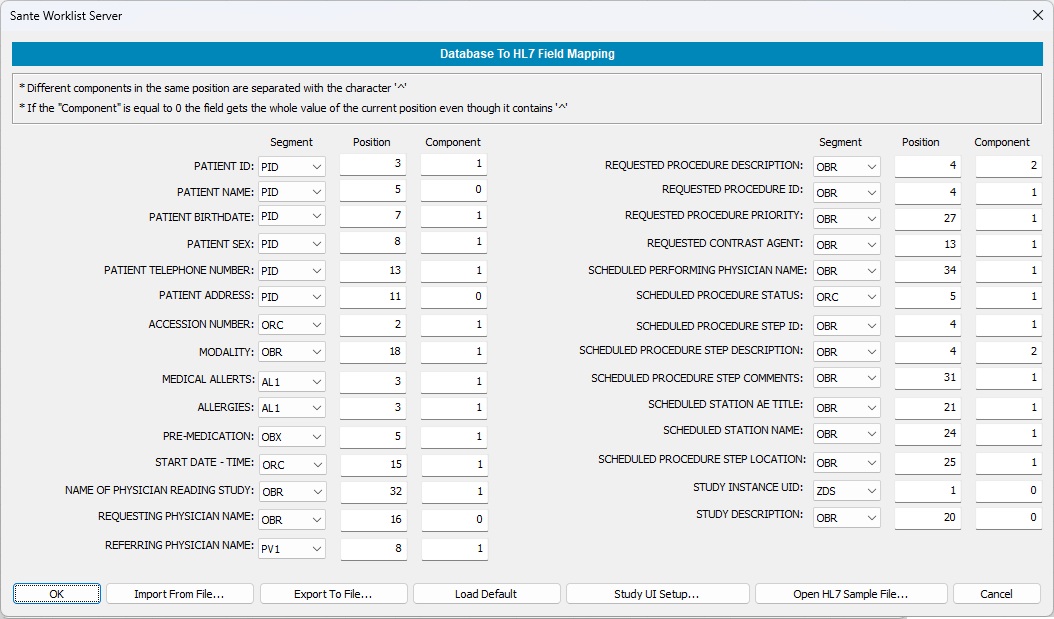
The first message uses the field OBR.18 to store the modality while the second one uses the field OBR.21. For that reason, the user must map the fields of the HL7 message that generates a specific HL7 server to the database fields of Sante Worklist Server. This command lets the user to do this mapping with the following dialog box:
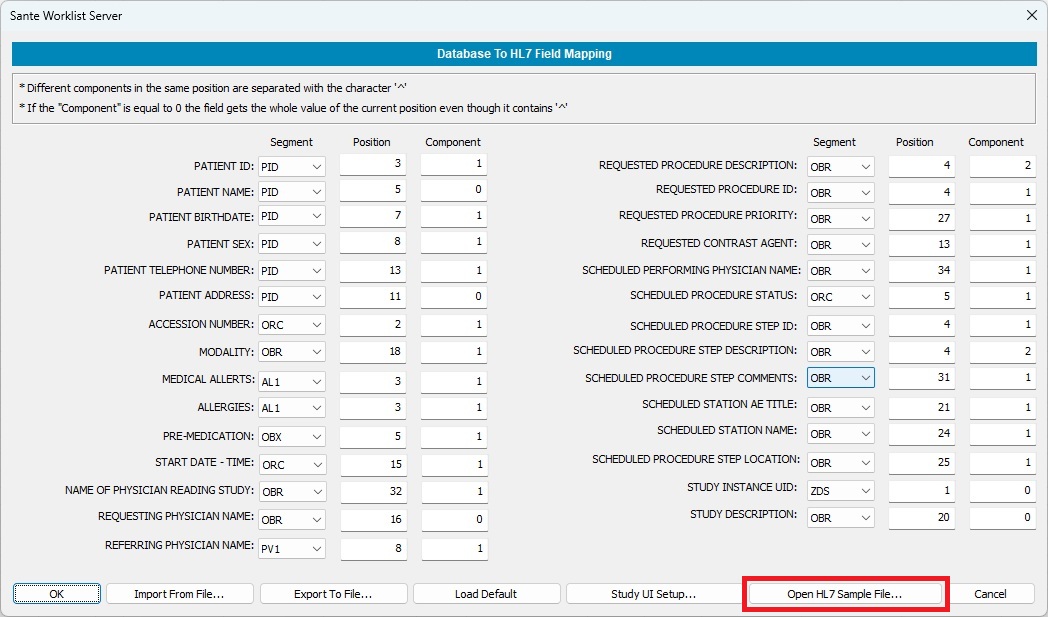
Getting help on HL7 to Database field mapping
With the "Open HL7 Sample File" button, the program allows the user to open an HL7 message "side-by-side" with the "Database To HL7 Field Mapping" dialog box.
The user can view the position of a field in the HL7 message and put the correct value on corresponding field of the "Database To HL7 Field Mapping" dialog box.
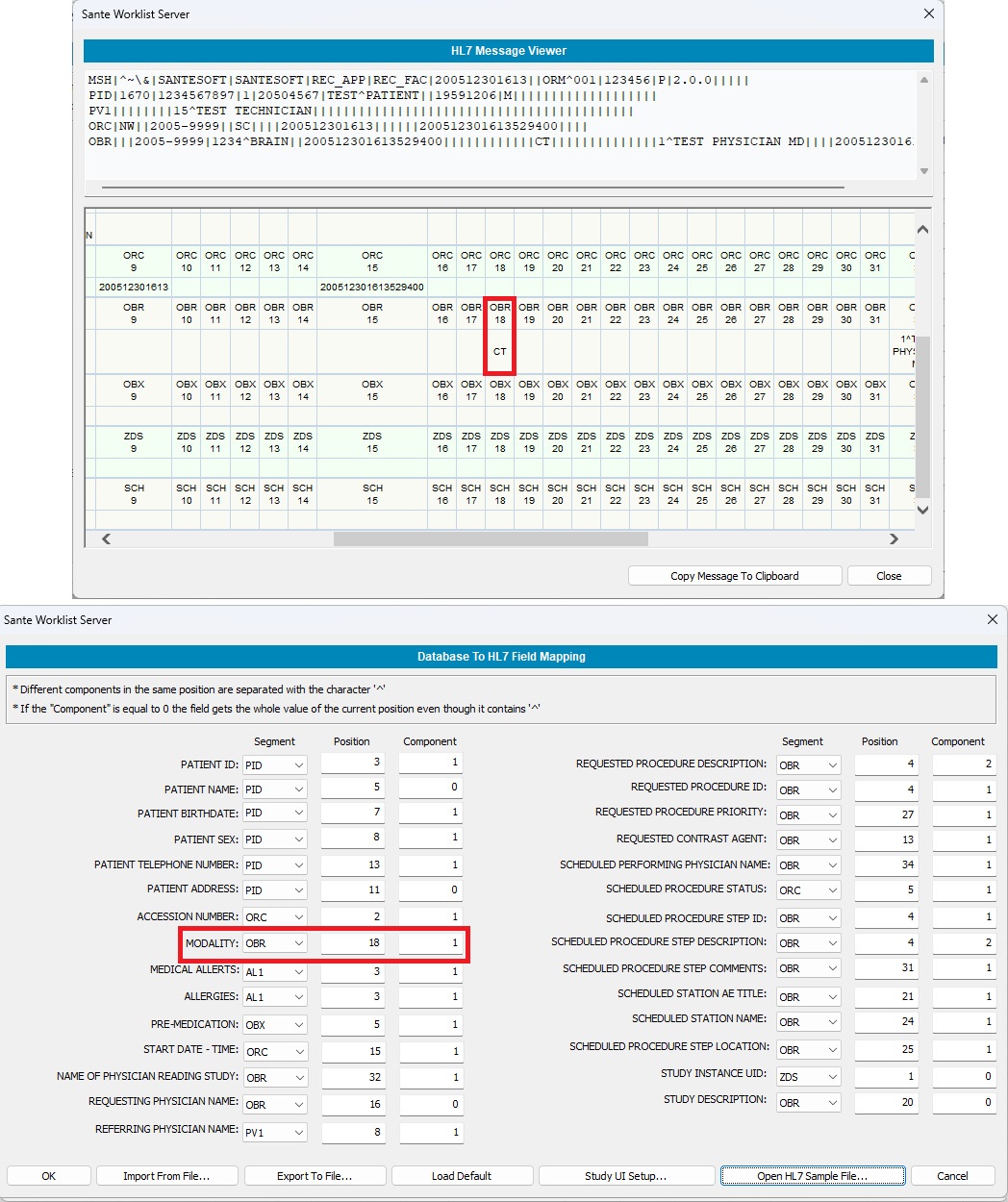
If an HL7 field does not contain
the character "^", the value of the "Component" must be equal to
1. If an HL7 field contains the character "^", e.g. "1234^BRAIN", for the
first part of the value (1234) the "Component" must be equal to 1 and for the
second part of the value (BRAIN) the "Component" must be equal to 2. If the
value of "Component" is equal to 0, the program uses the whole value (1234^BRAIN),
without splitting it into its parts.
Export to File button
The user can save the mapping to a disk file for backup and for use in another installation of the program.
Import from File button
Lets the user load from the disk drive a previously saved mapping.
Study UID Setup button
Some medical scanners do not accept worklist responses if those responses do not contain a Study Instance UID and this field in the response is blank. With this button, the program can create Study Instance UIDs automatically for those scanners:
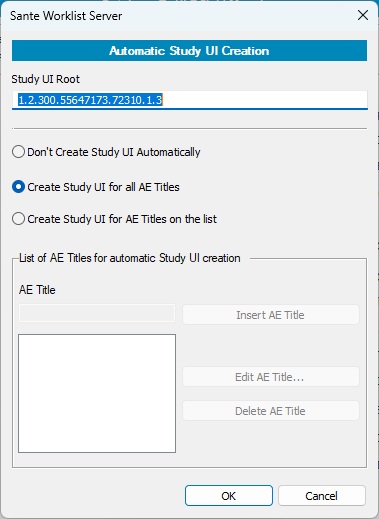
The program will create Study Instance UIDs only if the received HL7 message from HIS/RIS software does not contain any value for this field, as well as the target scanner exists in the list of the above dialog box.
Evaluation
The program without a registration key can run for 90 days for evaluation purposes. After that period, a valid registration key is required.
Purchasing
The program can be purchased from our online store at:
https://santesoft.com/win/sante-worklist-server/order.html
Program activation
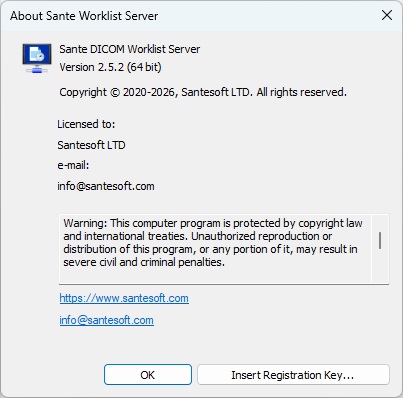
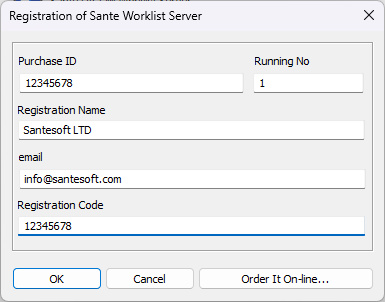
After purchase, the user will receive an email with the registration key. To activate the program, the user needs to select the Program Information command and in the dialog box appears the button "Insert Registration Key".
This button displays a dialog box that allows the user to activate the program. The information of the registration key is case-sensitive and the user needs to insert it exactly as it appears in the email.
The User Interface
The program window is divided into four parts:
1. At the top of the window there is the command toolbar that contains the commands of the program.

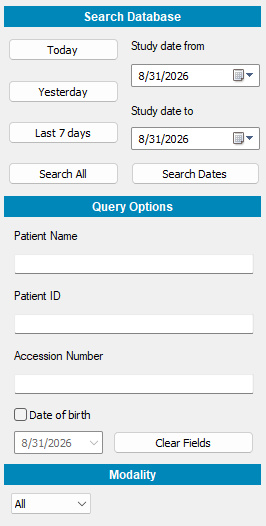
2. On the left side of the window there are the controls that let the user query the local database and view the records.
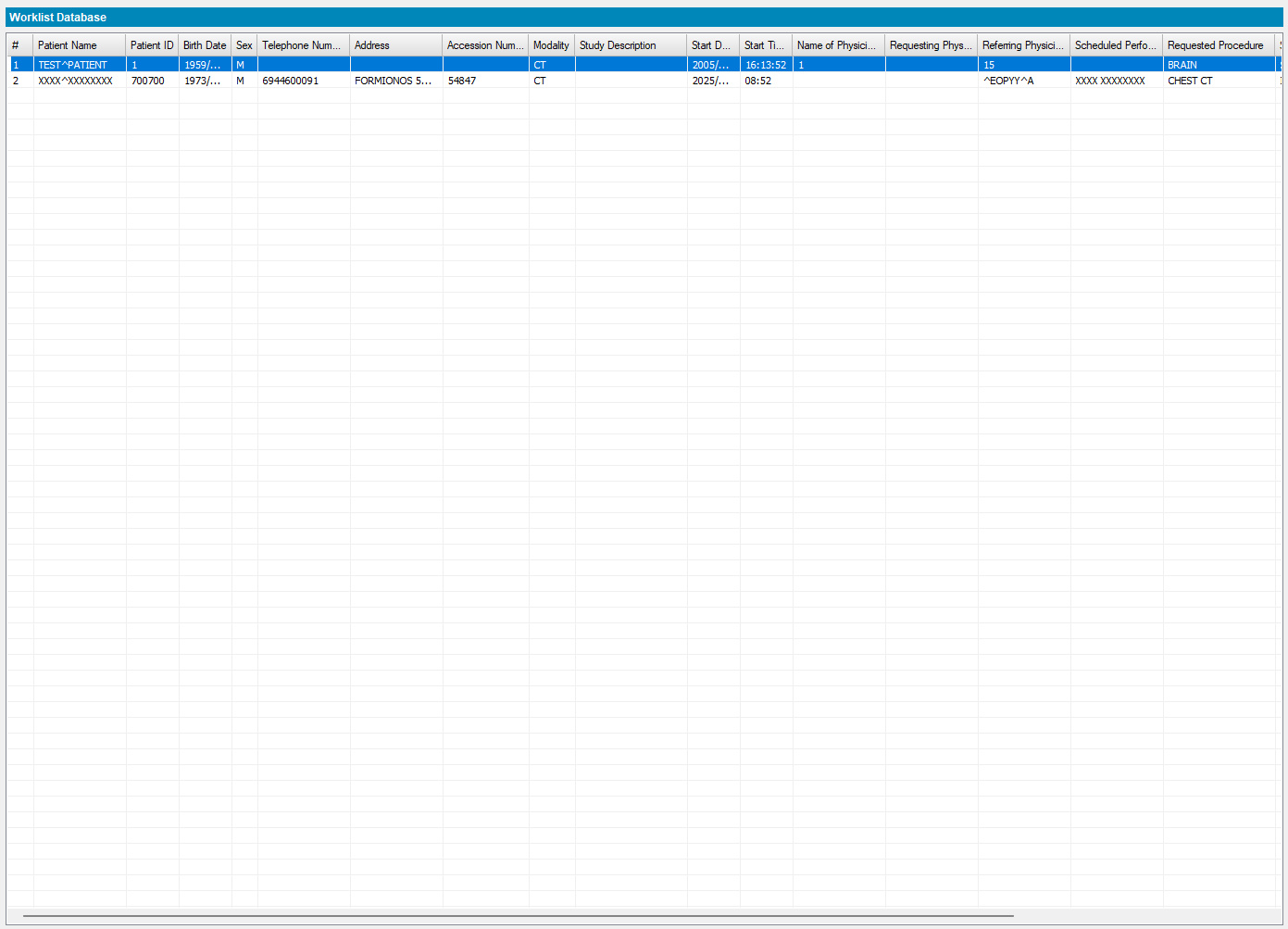
3.In the middle part of the window is the list that contains the records that the database engine returns after a query of the user of the program.
4. On the right side of the window there are the controls for manipulation of the results of a query and the general commands of the program.
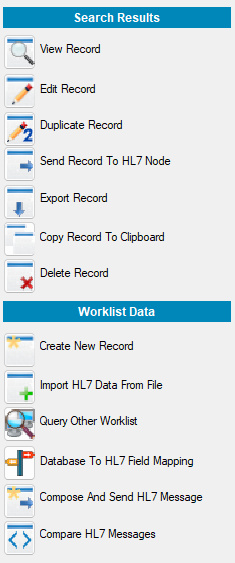
The Command Buttons
|
|
|
|
|
|
|
|
|
|
|
|
|
|
|
|
|
|
|
|
|
|
|
|
|
|
|
|
|
|
|
|
|
|
|
|
|
|
|
|
|
|
|
|
|
|
|
|
|
|
|
|
|
|
|
|
|
|
|
|
|
|
|

Toolbar Commands
Program Setup
 Before the first use of the software, the
user must configure it. The program acts as a DICOM worklist server and it can
be queried by medical scanners about the scheduled procedures, thus it must be
configured as a DICOM node. That is, it must receive an AE Title and an IP port
for DICOM communications like any other DICOM node. The program also acts as an
HL7 client, it can receive HL7 messages about the scheduled procedures from
HIS/RIS programs and for that purpose must receive an IP port for the communication
with other HL7 nodes. This command allows the user to configure the server with the
following dialog box:
Before the first use of the software, the
user must configure it. The program acts as a DICOM worklist server and it can
be queried by medical scanners about the scheduled procedures, thus it must be
configured as a DICOM node. That is, it must receive an AE Title and an IP port
for DICOM communications like any other DICOM node. The program also acts as an
HL7 client, it can receive HL7 messages about the scheduled procedures from
HIS/RIS programs and for that purpose must receive an IP port for the communication
with other HL7 nodes. This command allows the user to configure the server with the
following dialog box:
DICOM AE Title, DICOM port
The AE Title and IP port for DICOM communications with other DICOM nodes.
HL7 Port
The IP port for communication with other HL7 nodes such as HIS/RIS systems.
IP address
This address is received automatically from Windows OS. The user can change this value only from the TCP/IP configuration of Windows.
Sending Application / Sending Facility
The program can send HL7 messages to other HL7 clients. The program will use these values in the corresponding fields MSH.3 and MSH.4 of the HL7 messages.
Send Acknowledgement
Some HL7 servers require to receive an acknowledgement as proof that the client received the message. With this option enabled, the program sends this acknowledgement to the server.
In incoming queries use the Client AE Title when the tag 0040,0001 is empty
Many DICOM nodes ask for station name, if this field does not have a value the program uses the AE Title as station name.
Default Charset
If the HL7 message does not contain any information about the character set used, the program uses the value of this box.
Auto delete HL7 records
The program can delete automatically from the database old messages that are not useful anymore. The messages to be deleted can be older than 7 days, 14 days, 1 month or 3 months.
Create new record if update fails (does not exist)
If this option is enabled, the program will create a new record in the database if an update operation fails because the record does not exist.
Monitoring folder for auto-insertion of HL7 messages
The program scans the monitoring folder for HL7 messages and if they exist it inserts them into database. The messages must have the extension .txt or .hl7. After message processing the program adds to the file the extension .DON if the message was inserted successfully into database or the extension .ERR if not.
Erase HL7 messages after insertion
If this option is enabled, the program deletes the successfully inserted messages instead of adding in them the extension .DON. The program does not delete messages that were not inserted into the database.
Run the server as service
This option enables the software to run as a Windows service.
DICOM Network Log
 This command displays the DICOM network activity.
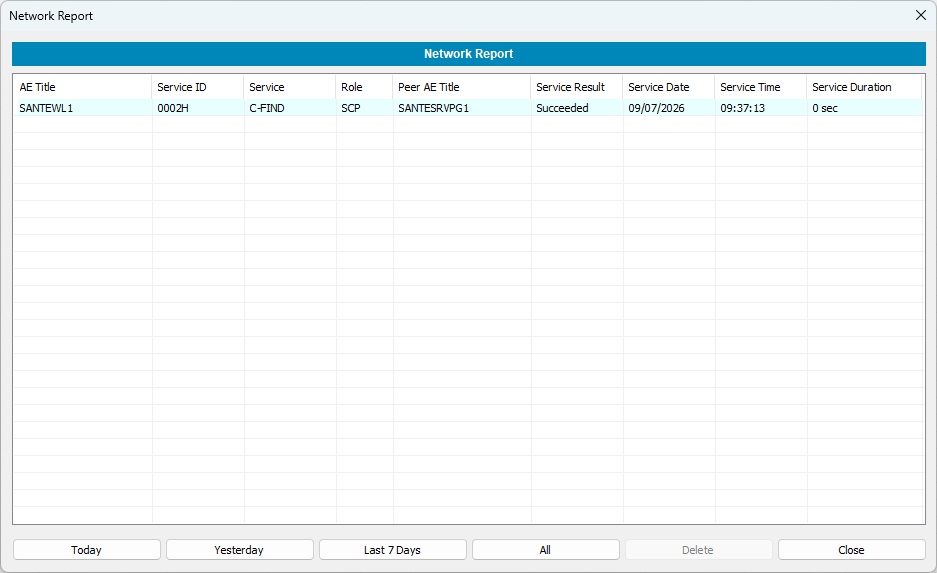
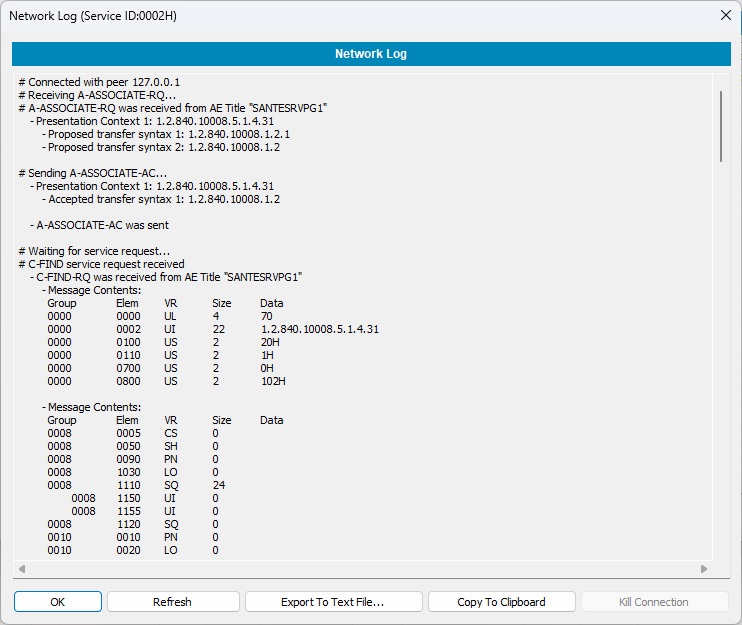
By double-clicking a row, the user can view details of that activity.
Log Folder
 This command opens the folder of log files in Windows Explorer.
Quick Start Guide
 This command displays this document.
Language
 This command defines the language settings for the program.
Program Information
 This command displays information about the program and the registered user.
Insert Registration Key button
After the purchase the user will receive an email with the registration key. This button displays a dialog box that allows the user to activate the program. The information of the registration key is case-sensitive and the user must insert it exactly as it appears in the email.
Exit
 This command exits the program.
Minimize To Tray
 This command minimizes the program window to the system tray.
Database Commands
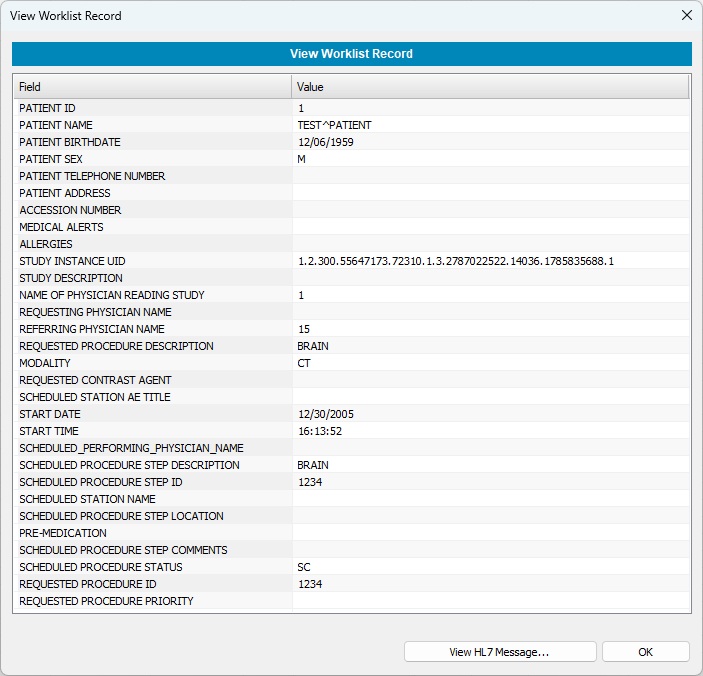
View Record
 This command lets the user review a database entry. The command is enabled when one record at least has been
selected in the database record list. Otherwise, the command is grayed out.
This command lets the user review a database entry. The command is enabled when one record at least has been
selected in the database record list. Otherwise, the command is grayed out.
Edit Record
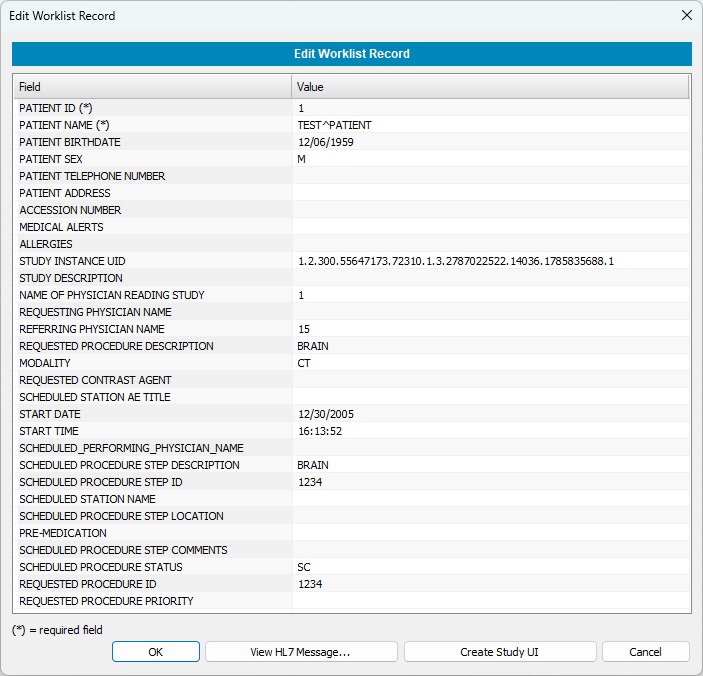
 This command lets the user edit and modify a database entry. The fields that are pointed out with a star (*)
are mandatory fields and they cannot be deleted. The command is enabled when at least one record has been selected
in the database record list. Otherwise, the command is grayed out.
This command lets the user edit and modify a database entry. The fields that are pointed out with a star (*)
are mandatory fields and they cannot be deleted. The command is enabled when at least one record has been selected
in the database record list. Otherwise, the command is grayed out.
Duplicate Record
 This command lets the user create a duplicate of a record and it is useful when the user wishes to create a
new record that has many common fields with another record.
This command lets the user create a duplicate of a record and it is useful when the user wishes to create a
new record that has many common fields with another record.
Send Record
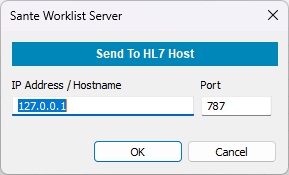
 This command lets the user send a database entry to a specific HL7 node in the form of an HL7 message.
The command is enabled when at least one record has been selected in the database record list.
Otherwise, the command is grayed out.
This command lets the user send a database entry to a specific HL7 node in the form of an HL7 message.
The command is enabled when at least one record has been selected in the database record list.
Otherwise, the command is grayed out.
Export Record
 This command lets the user save a database entry to a disk file as an HL7 message.
The command is enabled when at least one record has been selected in the list of the records
of the database. Otherwise, the command is grayed out.
This command lets the user save a database entry to a disk file as an HL7 message.
The command is enabled when at least one record has been selected in the list of the records
of the database. Otherwise, the command is grayed out.
Copy Record
 This command lets the user copy a database entry to the clipboard as an HL7 message.
The command is enabled when at least one record has been selected in the list of the records
of the database. Otherwise, the command is grayed out.
This command lets the user copy a database entry to the clipboard as an HL7 message.
The command is enabled when at least one record has been selected in the list of the records
of the database. Otherwise, the command is grayed out.
Delete Record
 This command lets the user delete one or more database entries that are no longer needed.
The command is enabled when at least one record has been selected in the list of the records
of the database. Otherwise, the command is grayed out.
This command lets the user delete one or more database entries that are no longer needed.
The command is enabled when at least one record has been selected in the list of the records
of the database. Otherwise, the command is grayed out.
Create Record
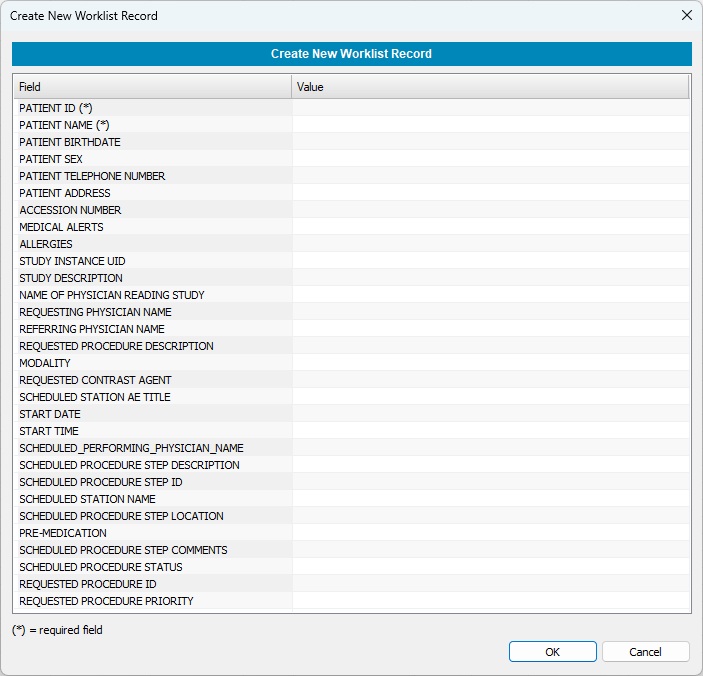
 Although the HL7 data are usually created by HIS/RIS software and they are sent to Worklist server via an HL7 message,
the program offers to user the ability to create new worklist records from scratch. The fields that are pointed out with
a star (*) are mandatory fields.
Although the HL7 data are usually created by HIS/RIS software and they are sent to Worklist server via an HL7 message,
the program offers to user the ability to create new worklist records from scratch. The fields that are pointed out with
a star (*) are mandatory fields.
Import HL7 Message From File
 This command lets the user insert an HL7 message into the database that has been saved in a text file.
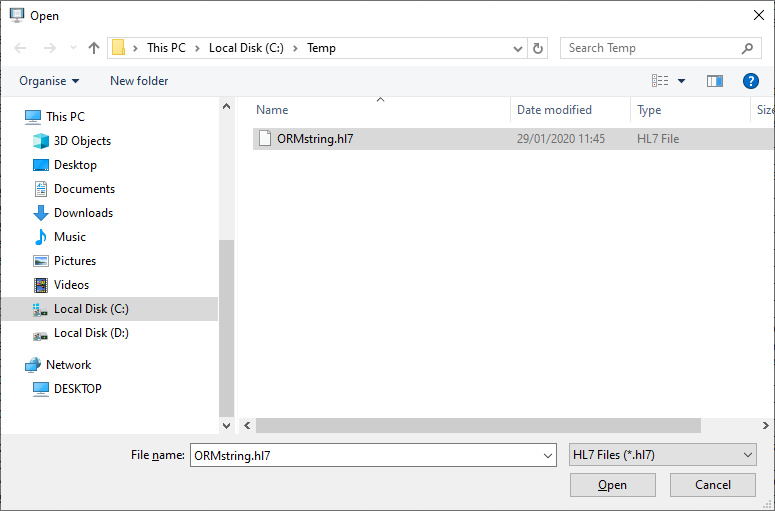
The file must be a text file that contains an HL7-formatted message like this example:
MSH|^~_&|EUROMEDICA|EUROMEDICA|SYNGO.PLAZA|SYNGO.PLAZA|20190315090409||ORM^O01|201903150904097|P|2.3.1|
PID||7007|7007||NAME||19731215|M|||ADDRESS||6944600091|2107778888||||8833925||||||||||GR|||
PV1||I|15076600732|||||^EOPYY^A||||||15076600732|||||54847|||||||||||||||||||||||||201903150852||||||||
ORC|NW|54847|||IP||^^^20190315085226||201903150852||||||201903150852|||||
OBR|1|54847||21100^CT|R||20190315095000|20190315100000||||||||||CT||||||CTAWP73120|||201903150852|||||
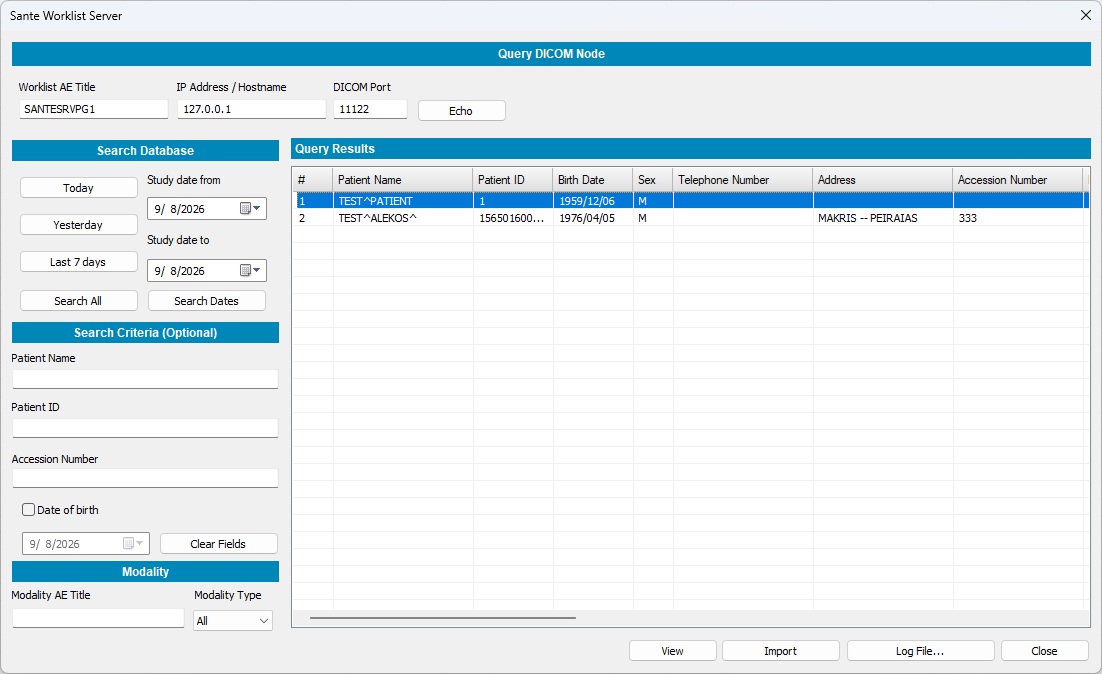
Query DICOM Worklist Node
 With this command, the program lets the user query other Worklist Servers on the network and import their records into the
database of the program.
With this command, the program lets the user query other Worklist Servers on the network and import their records into the
database of the program.
Database to HL7 Field Mapping
 Not all HL7 applications use the same fields of an HL7 message to store the same piece of information.
In the example below the two messages use different positions of the OBR segment to store the modality:
Not all HL7 applications use the same fields of an HL7 message to store the same piece of information.
In the example below the two messages use different positions of the OBR segment to store the modality:
MSH|^~_&|EUROMEDICA|EUROMEDICA|SYNGO.PLAZA|SYNGO.PLAZA|20190315090409||ORM^O01|201903150904097|P|2.3.1|
PID||7007|7007||NAME||19731215|M|||ADDRESS||6944600091|2107778888||||8833925||||||||||GR|||
PV1||I|15076600732|||||^EOPYY^A||||||15076600732|||||54847|||||||||||||||||||||||||201903150852||||||||
ORC|NW|54847|||IP||^^^20190315085226||201903150852||||||201903150852|||||
OBR|1|54847||21100^CT|R||20190315095000|20190315100000||||||||||CT||||||CTAWP73120|||201903150852|||||
MSH|^~\&|application|application|REC_APP|REC_FAC|201912291543||ORM^O01||P|2.3.1|||||||||
PID|||1|1|Patient^Name||19591206|M|||||||||||||||||||||
PV1|||||||||||||||||||||||||||||||||||||||||||||||||||
ORC|NW|||||||||||||||||||||||
OBR|||2005-9999|1234^BRAIN||200512301613529400|||||||||||||||CT|||||||||||||||||||||
The first message uses the OBR.18 field to store the modality (CT) while the second one uses the field OBR.21. For that reason, the user must map the fields of the HL7 message that generates a specific HL7 server to the database fields of Sante Worklist Server. This can be done using the Database To HL7 Field Mapping. This command displays the following dialog box, which allows the user to configure the mapping:
Import from File button
Lets the user load from disk a previously saved mapping.
Export to File button
The user can save the mapping to a disk file for backup and for use in another installation of the program.
Study UID Setup button
Some medical scanners do not accept worklist responses if those responses do not contain a Study Instance UID and this field in the response is blank. With this button, the program can create Study Instance UIDs automatically for those scanners:
The program will create Study Instance UIDs only if the received HL7 message from HIS/RIS software does not contain any value for this field, as well as the target scanner exists in the list of the above dialog box.
Open HL7 Sample File button
With this button, the program allows the user to open an HL7 message "side-by-side" with the "Database To HL7 Field Mapping" dialog box. The user can view the position of a field in the HL7 message and put the correct value on corresponding field of the "Database To HL7 Field Mapping" dialog box.
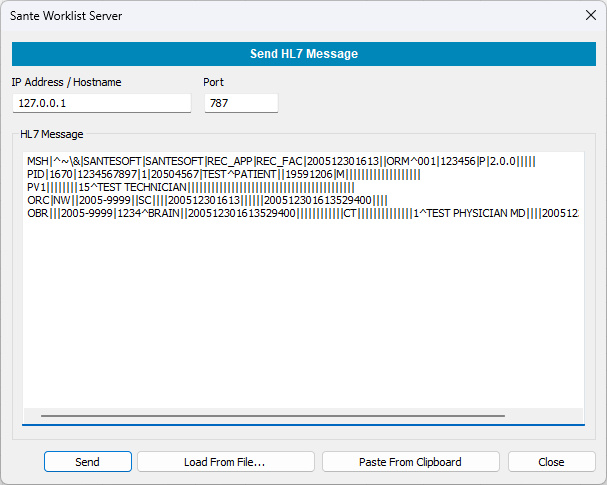
Compose and Send HL7 Message
 With this command, the program allows the user to compose an HL7 message or load one from a file, edit it, and send it to a specific HL7 node.
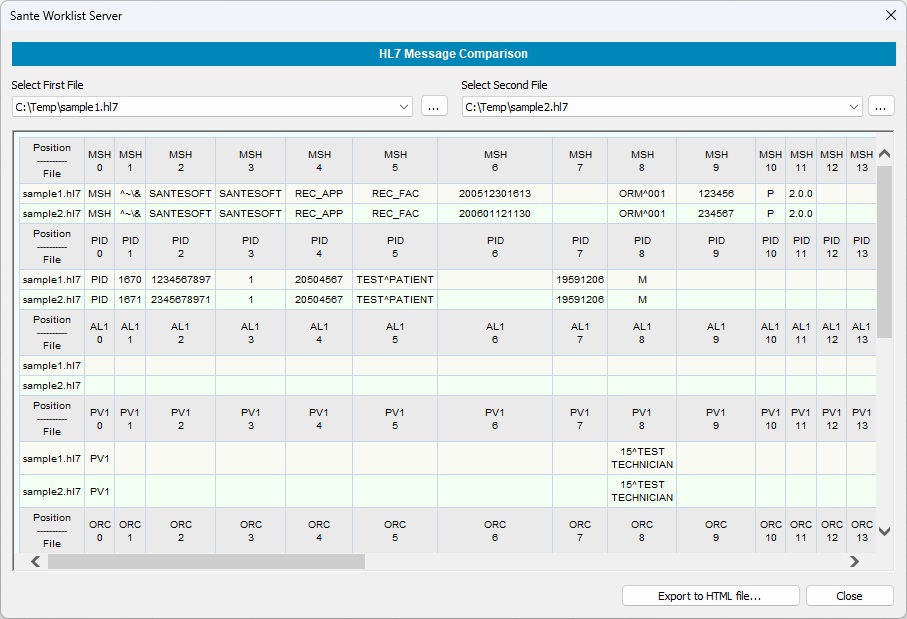
Compare HL7 Messages
 This command lets the user compare two HL7 messages. It is useful in cases where one message works fine with the
current field mapping of the program and another does not, and the user wishes to find the differences between the two messages.
This command lets the user compare two HL7 messages. It is useful in cases where one message works fine with the
current field mapping of the program and another does not, and the user wishes to find the differences between the two messages.
Connection Troubleshooting
Communication Issues
If the program cannot communicate with other DICOM or HL7 nodes, please check the following checklist:
- Ensure that the ports of the program are not used by any other program.
- Ensure that the ports of the program are not blocked by a firewall or antivirus program.
-
When the program starts it asks to be added to the firewall exception list. If you answered No, you must add it manually.
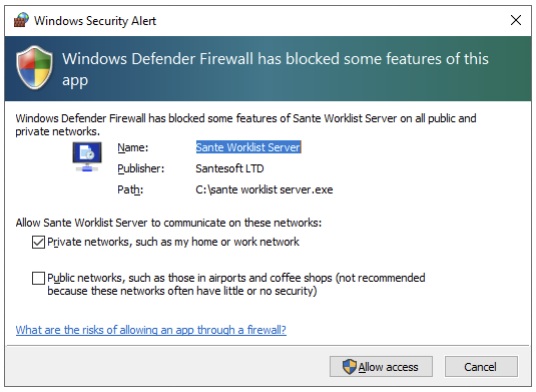
- If the two nodes (server and client) belong to different subnets, ensure that the ports of the program are forwarded by the router.
- If the PC has more than one network card (physical, logical or virtual network cards) and thus more than one IP address, ensure that the client and server use IP addresses of the same subnet.
- If the PC has more than one network card (physical, logical or virtual network cards) and thus more than one IP address, ensure that the client and server use IP addresses of the same subnet. E.g. If the server has two IP addresses, the addresses 192.168.1.1 and 172.91.1.1 and the client has the IP address 192.168.1.* the client must use the address 192.168.1.1 as the IP address of the server. If the client has the IP address 172.91.1.* it must use the address 172.91.1.1 as the IP address of the server. That means that the server and client must belong to the same subnet. In case that the PC has more than one IP address, the program displays only one IP address, the first one, although it opens its IP ports in all the available network interfaces and not only in the indicated IP address. Use the command ipconfig in the command prompt to get a list of all the IP addresses of the PC.
Check a port of the program
You can use the netstat utility in the command prompt to check whether the program's port is open and which IP address it is bound to.
In the command prompt, use the command:
C:\>netstat -ano -p tcp |find "11131"
to check if port 11131 of the program is open and to which IP address. The last number that the program prints is the PID of the application that has opened the port.
In the command prompt, use the command:
C:\>tasklist |find "<PID>"
(where <PID> is the actual number of the application, in this example it is 25376)
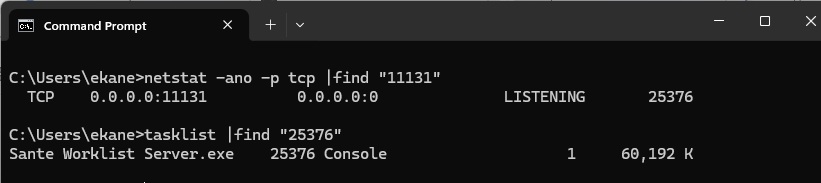
With these commands you can check the port of the Worklist server module as well.
The Message Format
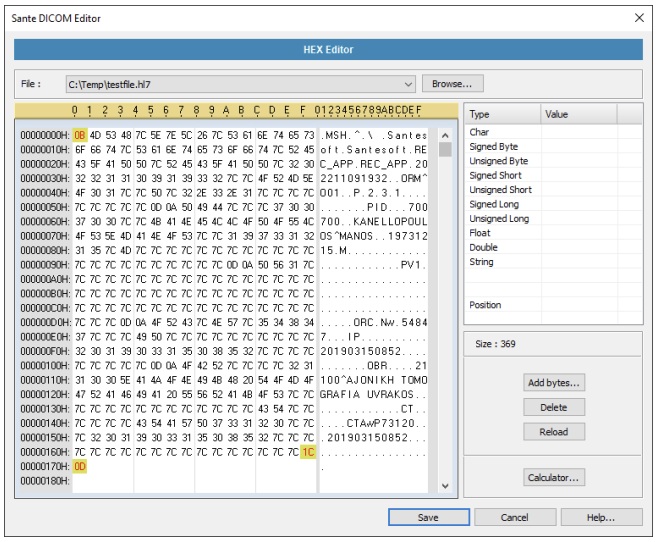
HL7 messages transferred over a network connection through the program's HL7 port must start with the (non-printable) character 0B (hexadecimal) and they must end with the (non-printable) characters 1C and 0D (hexadecimal). The messages that are inserted via the interface of the program and not via the network do not need these characters.
Example
An HL7 text message:
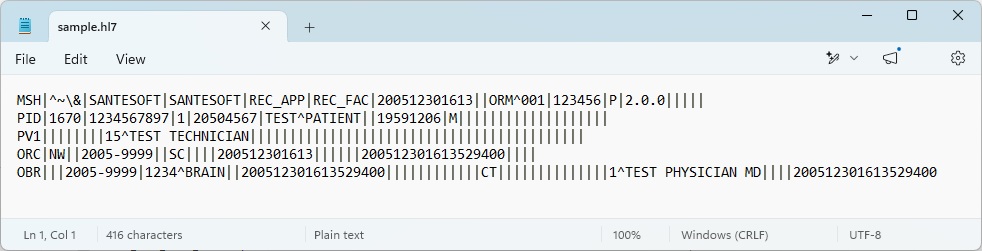
The hexadecimal view of the message in which the start and end characters are highlighted:
Troubleshooting
Starting and ending characters of a message
HL7 messages, when transferred over a socket, must start with the character 0B (HEX) and they must end with the characters 1C 0D (HEX). Make sure these characters are included in your messages.
Check the HL7 port of the program
You can use the netstat utility in the command prompt to check if the port of the program is open and to which IP address.
In the command prompt, use the command:
C:\>netstat -ano -p tcp |find "787"
to check if the HL7 port 787 of the program is open and to which IP address. The last number that the program prints is the PID of the application that has opened the port.
In the command prompt, use the command to find which is this application:
C:\>tasklist |find "<PID>"
(where <PID> is the actual number of the application, in this example it is 25376)
